Not actually. AI tools are here to avoid repetitive and time-consuming tasks, not to replace any designer.
Why the Last Mile of AI Image Generation Finally Arrived
POST BY
PUBLISHED
May, 21, 2026

For the last many years, I have been observing that the AI image generation felt truly impressive in its demos, but in real practice, the results were not that impressive. The images were not bad, but to take advantage of them and use them for some project or even a post, it used to demand much editing and effort.
But not anymore! The new gpt image 2 has shifted things drastically. These are not just any random image generators; they help everyday creators build banners, presentations and other works for professional use.
It’s a miracle for freelancers, markets and even every professional. Read more to learn why the last mile of AI image generation finally arrived.
Key Takeaways
- Modern AI image generation has become a genuinely useful tool for routine professional and creative work.
- AI tools are not to replace the design professionals, but to help them achieve more accuracy.
- AI tools still have various limitations. For specific tasks and complex professional use, extra efforts might be required.
Table of Contents:
The Workflow That Replaced Four Separate Tools
What was once demanded for stock sites and editing software can now be done in a single software. This efficiency helps much more than what people expect and think about:
Turning a Client Brief Into Usable Prompts
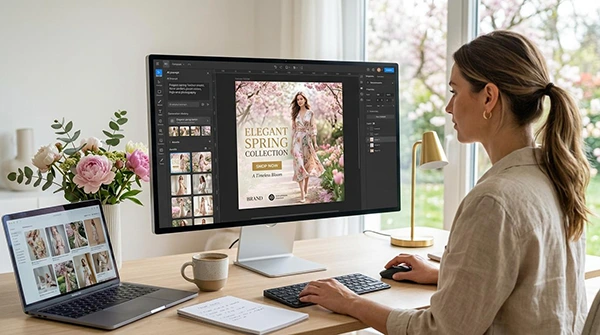
The first challenge was to convert a vague brief into something the tool could work with. The client wanted a banner with “Spring Collection” in fine typography, a soft pastel background, and a lifestyle photography feel. Instead of looking for stock images and layering text manually, I presented the scene directly: a sunlit terrace with linen fabrics, a handcrafted headline, and natural shadows.
The output was given in seconds, with every word listed correctly and the tune matching the requested mood. What amazed me was how little I needed to adjust the statement to get a usable result. For someone without design terms, the ability to define a scene in plain English and receive a glossy visual asset felt like a genuine value shift.
A Side-by-Side With My Old Process
Before this tool, a single banner calls for at minimum three isolated platforms: a stock photo site for imagery, a typography tool or template library for text overlay, and a basic editor for color correction and cropping. Each step created noise, and the final quality rarely reflected the initial vision.
By collapsing generation and text execution into a single prompt-based workflow, the morning’s tasks moved from five hours of scattered effort to roughly ninety minutes of focused description, review, and light iteration. The time savings came not from faster generation alone, but from removing the selective switching between tools that previously shaped my visual work.
Learning the Tool in the Middle of a Deadline
Most of the creators don’t have time to learn how the complicated tools work. Below are the simple steps described to complete tasks easily and on-time:
Step 1: Describe the Image in Plain Language
Why Specificity Pays Off Immediately
The prompt box is the only point of contact, and its simplicity is unsettling. My early attempts were too brief—“a coffee cup with text”—and the results looked broadly acceptable but lacked identity. Once I started adding details about lighting direction, surface textures, and the emotional tone of the image, the outputs became consistently closer to what I needed.
The system appears to respect metric precision without including technical jargon. Phrases like “shot on 50mm lens, golden hour, shallow depth of field” consistently triggered the visual style, even though I never picked any camera settings in a menu.
Handling Client Edits Without Reopening a File
Mid-morning, the client proposed to change the background color of one banner from pastel pink to soft sage green. In a traditional workflow, this would have meant picking up the editable file, adjusting layers, re-exporting, and hoping nothing stuck. Instead, I typed a more specific instruction: “keep everything the same but change the background to soft sage green.”
The edit maintains the headline typography, the fabric textures, and the lighting direction, while replacing the background cleanly. Two out of three edit requests clicked perfectly on the first attempt; a more complex repositioning of elements meant one additional regeneration. The chance to iterate informally, without ever touching a layer panel, is what made the noon deadline achievable.
Step 2: Choose Resolution and Output Format
Making Trade-Offs Between Quality and Speed
The platform offers resolution defaults up to 4096×4096 pixels and format options including PNG, JPEG, and WebP. For banners intended for Instagram and email, the 1536×1024 resolution was more than sufficient and kept generation times brief.
When I needed a hero image for a presentation slide that might be seen on a large screen, switching to 4K output provided visibly sharper text and finer texture detail.
The transparent background switch proved oddly useful for the product mockups: generating a bottle image without a background meant I could place it right onto the client’s existing brand palette without manual editing.
Step 3: Download and Deliver
From Prompt to Published in Under Two Minutes Per Asset
Once an image met the short description, downloading it in the specified format was a single click. There was no watermark, no forced share, no automatic account upgrade prompt blocking the flow. For the full morning’s work—seven images across three formats—I spent more time writing the starting prompts than waiting for updates or managing files.
The practical result was that I sent the assets before noon, and the client focused on the “professional typography” without knowing an AI had created the text. From a freelancer’s point of view, the tool operated less like a creative assistant and more like an on-demand production layer that solved a skill gap I have never been able to close through training alone.
What Kind of Work Actually Fits This Flow
Not every complex and business-specific work can be done with these tools. Learn about the kind of work that actually fits this flow:
Social Media Graphics That Need Text to Work
The morning’s most obvious wins were banners and posts where text was the central element. Headlines, dates, and short taglines worked sharply and stayed readable even when scaled down for mobile previews.
For anyone who runs brand accounts where every post calls for a visual with added copy, the difference between this tool and previous generators is the difference between a draft and a shareable asset.
Product Visuals Without a Photoshoot
I generated several product-on-background images for a skincare line. The model liked thin gel textures and reflective glass surfaces better than expected, though extremely fine shadows sometimes looked slightly unreal compared to studio photography.
These outputs are meant for e-commerce thumbnails, social proof sections, and internal displays; high-end catalog print work, in my view, still calls for professional capture and editing.
Presentation Headers That Look Designed
The slide deck headers came out clean and aligned, with title text drawn correctly and supporting graphics placed without clutter. For consultants and educators who build decks more often, the tool removes the complex step of sourcing and editing decorative imagery for title slides. The results feel uniquely designed rather than stock-photo-plus-WordArt, which has been the default alternative for non-designers for years.
A Practical Comparison of Daily Workflow Tools
The table below compares the workflow I experienced against my two previous go-to solutions: conventional AI image generators and design template platforms.
| Aspect | GPT Image 2 | Traditional AI Generators | Template-Based Design Tools |
| Text reliability in images | Consistently spelled and positioned; editable | Frequently garbled; manual overlay required | Manually typed; fully reliable |
| Steps from idea to asset | One prompt; optional edits | Generation, then separate text overlay | Template selection, customization, export |
| Learning requirement | Descriptive writing; no design skills | Descriptive writing; no design skills | Moderate design familiarity needed |
| Edit turnaround | Natural language; seconds | Re-generation or external editor | Manual adjustment in layers or blocks |
| Transparent background support | Built-in toggle | Usually requires external tool | Native in advanced tiers |
| Suitability for copy-led designs | Strong; core strength | Weak; risk of unusable text | Strong but slower to execute |
The Honest Limits of a Prompt-First Workflow
Several obstacles became clear during the morning’s work. First, the quality of the output depends very much on the quality of the prompt; vague titles still produce vague images. Users who favor browsing visual options rather than crafting precise scenes may find the tool less clear initially.
Second, fine-grained control over individual design factors—kerning, exact hex color values, fine layout grids—is not available. The tool makes creative decisions intuitively, which works well for broad intent but less so for strict brand guidelines.
Third, uniformness across multiple generations is strong but not absolute; two banners meant to form a series may show slight variations in lighting temperature or saturation that mean minor post-processing.
Fourth, complex edits involving multiple parallel changes can take two or three iterations to resolve fully. These are not dealbreakers for most daily marketing tasks, but they define where the tool fits and where a professional designer remains critical.
A New Default for the Non-Designer’s Toolkit
Till Tuesday, things were in practice but truly satisfying. But all of a sudden, a turning point came and things changed. The latest gpt image 2 really provided the results that were not demanding for further editing and felt more like a practical tool.
This time, the ability to deliver images that were, by default, creative and polished was truly mesmerizing. And especially for people who are not professional designers, this update made a huge change. What once felt frustrating was now manageable and actually helpful.
FAQs
Will AI image generation replace the designers?
Do I need to have design experience to use AI image generators?
No, various AI tools are designed for everyday use with a simple interface and language.
Are AI images good enough for professional work?
For most tasks, yes. But for more delicate and complex tasks, it might need better detailing and extra editing to bring it into use.
Related Posts