Ans: When there’s a connection disruption between the VPN client and the VPN server, users encounter the error message “Unable to establish connection” with the code 800 on the VPN connection. Network connectivity issues are a common cause of this Windows VPN error.
Windows VPN Error 800 Meaning, Cause, and Solutions: A Complete Guide (Updated 2026)
POST BY
PUBLISHED
March, 27, 2026
“Windows VPN Error 800” is probably one of the last things you want to see when connecting to a VPN for a planned online gaming session, an urgent office task, or to access your favorite website.
Luckily, you can easily fix this common Windows-specific “Unable to establish the VPN connection” error by following the simple methods in this troubleshooting guide.
So, let’s begin this article by understanding the Windows VPN Error 800 meaning first, and then we’ll learn how you can fix this error on both the client and server sides.
Table of Contents:
What does Windows VPN Error 800 Mean?
Windows VPN Error 800 refers to a connection failure between the VPN client (You) and the VPN server. In other words, your Residential VPN or IPsec VPN is unable to connect with the server, hence there will be no remote access.
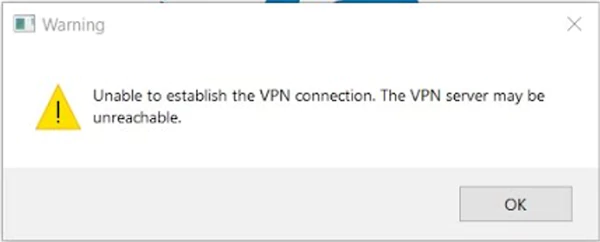
When you encounter this issue, you will come across the full error that reads, “Unable to establish the VPN connection. The VPN server may be unreachable.”
But what causes this error? You may ask.
There can be various reasons for this frustrating error, such as firewall settings, incorrect server names, network issues, or server-side misconfiguration.
Therefore, to resolve this Windows VPN issue, you have to validate the VPN settings on both the client and server ends.
But before we redirect to the fixes, it is important to understand the root cause of this Windows error VPN 800, so that it doesn’t overwhelm you the next time and facilitate the solutions.
What Causes Windows VPN Error 800?
As mentioned above, Windows error 800 can occur for several reasons that can disrupt your VPN connections to the server. So, let’s take a look at the potential factors that contribute to this common and irritating VPN error.
- One of the most common reasons that triggers this 800 VPN error on Windows is an incorrect or wrong VPN server address. It is very sensitive; an error or typo in the hostname or IP address can trigger this VPN issue instantly.
- If firewalls or routers jam the required VPN ports on the client (you) or server side, this will cause error 800 on your Windows PC.
- Network connectivity issues are another factor that is observed as a key contributor to the VPN error on your computer. The VPN connection will not be possible until the client (you) reaches the internet or the server is online.
- Unable to resolve the correct VPN hostname to an IP address can cause DNS issues that affect your connection and lead to Windows VPN error 800.
- Do you know that the wrong server role configurations or overloaded VPN servers are frequently found to be the culprits for this VPN connection failure between you and the server? Yes, server configuration issues are a phenomenon that cannot be overlooked when resolving error 800.
So, these are the reasons that are largely responsible for this VPN error on Windows. Now, it’s the moment for you to learn how to fix Windows VPN error 800.
How to Fix Windows VPN Error 800? (Client and Server Side Solutions)
Repairing Windows VPN error 800 is a process of working with logical deduction and a systematic approach. The issue can be from either end, the client or the server, as it generally occurs due to some fundamental networking issues.
Therefore, we have listed all the possible solutions for both ends that can fix this error.
Client End Solutions
- Inspecting your internet connectivity is the first step that, as a VPN client user, you have to take to ensure that you’re connected to an active internet connection or not. If you’re encountering an issue connecting to a network, try troubleshooting network adapters and resetting your router if required.
- Ensure that you have the right VPN server address. Cross-check for any typos or case sensitivity problems, whether it is a domain name or an IP address. You can also use ping hostname in the command prompt to examine the resolution of the hostname you’re using.
- Temporarily disable local firewalls or antivirus software, as they can block VPN traffic. So, to test it out, try disabling and check whether the error 800 on Windows is fixed or not. If it works, you re-enable the firewall and 3rd party security software to allow VPN ports via the rules.
- Update to the latest network drivers because outdated network drivers could negatively affect the VPN connection and end up getting you a VPN error on your Windows PC.
To update your PC’s network drivers, go to Device Manager >> Network Adapters >> click on your adapter > > hit “Update Driver.” Once you’re done with updating, reboot your system.
- Change VPN Protocol/Type by going to Network & Internet Settings >> VPN >> Change adapter options. Next, click on your VPN connection >> Properties >> Security Tab. Now, try changing the VPN protocol between L2TP/IPsec, PPTP, or SSTP.
These effective solutions will help you as a VPN client user to repair Windows VPN error 800 and establish a VPN tunnel between the client and server..
Sever End Solutions
- Check the VPN server software or services status and confirm they are working properly, as it is counted as one of the most common phenomena that is responsible for VPN error 800 on Windows.
On Windows servers, you can go through the Routing and Remote Access services and reboot. It is not running fine, whereas on 3rd party servers, ensure that the daemon/processes are on.
- Cross-examine the server IP or hostname is another effective method to resolve the respective VPN error. Your domain name should correctly direct towards the public IP addresses if the clients are accessing through hostname.
- Validate Firewalls/ open ports by checking that your server firewall and router have the right ports for your VPN protocol open. Ensure that PPTP: TCP1723, L2TP/IPsec: UDP 500, UDP 1701, UDP4500, and SSTP: TCP 443.
Pro-tip: To confirm port status, you can leverage tools like telnet or netsat.
- Toggle on NAT Traversal in your VPN server configuration if your clients are using NAT-enabled routers, as certain VPNs, such as L2TP and IPsec-based ones, mandate NAT Traversal. So, enable it if it is required to fix the connection error between the client and server.
- Evaluate Server load and performance, as an overloaded or under-resourced server has the potential to plummet or deny new connection requests raised by the clients. In such a scenario, ensure CPU and message usage are optimal. If the server is displaying high resource usage, you can also restart or sometimes disable other non-useful services.
- Analysing user permissions can also help you find the cause of the VPN connection failure. Check whether the client has the right login credentials and privileges on the VPN server to connect. Also, examine group policy settings, maximum connection limit, or login restrictions.
By reviewing these configurations and settings on the server end, admins or users operating their private VPN servers can resolve the Windows 800 error.
Conclusion
Windows VPN error 800 “Unable to establish the VPN connection” is an error that commonly occurs when you use a virtual private network (VPN) on your Windows PC.
At first, fixing it could feel unsettling & challenging because the error code doesn’t describe the cause behind the connection failure. But it’s just a drawback of a fundamental networking malfunction that can be from the client’s end or the server’s end.
So, whether you’re a user or an administrator, by following the above-mentioned solutions, you can easily fix this error.
Frequently Asked Questions
Q: What is error code 800 on VPN connection?
Q: How to fix the firewall blocking VPN?
Ans: By changing the port, you can let your transmissions pass through easily and fix network blocking of VPNs caused by a firewall that prohibits certain ports. This troubleshooting method mandates your discretion, or else admins may block each port you use to access VPNs if it is revealed.
Q: How to fix VPN issues on Windows 10/11?
Ans: Here are the methods that you can use to fix VPN issues on Windows 10/11:
- Make sure your internet connection is working fine.
- Cross-verify your VPN credentials.
- Try shifting to a different server.
- Adjust the VPN protocols.
- Ensure there are no software issues or firewall disruptions.
Q: How do I reset my VPN on Windows?
Ans: To reset your VPN on Windows or clear out the VPN credentials, follow the given steps:
- Click on the Network Icon on the top-right of the taskbar.
- Select the VPN connection to clear the credentials.
- In the new window, choose the VPN that you want to reset.
Q: Why is VPN suddenly not working?
Ans: Firewalls, security software, and protocols are some common issues behind VPN suddenly not working. Ensure that your firewall or antivirus program isn’t blocking the VPN connection, and there are certain networks that block certain protocols, so try shifting to a different protocol.
Related Posts